

Recipes · Basics
Creating your first recipe
Write a recipe in Cuisson and see what its ingredients cost as you go. This guide makes a spinach omelette, from the first line to the finished recipe.
Before you start
Have your ingredients and their prices ready. If you haven't added them yet, see Add ingredients and supplier prices. You can still write the recipe without prices, but its cost may be incomplete.
1. Create the recipe
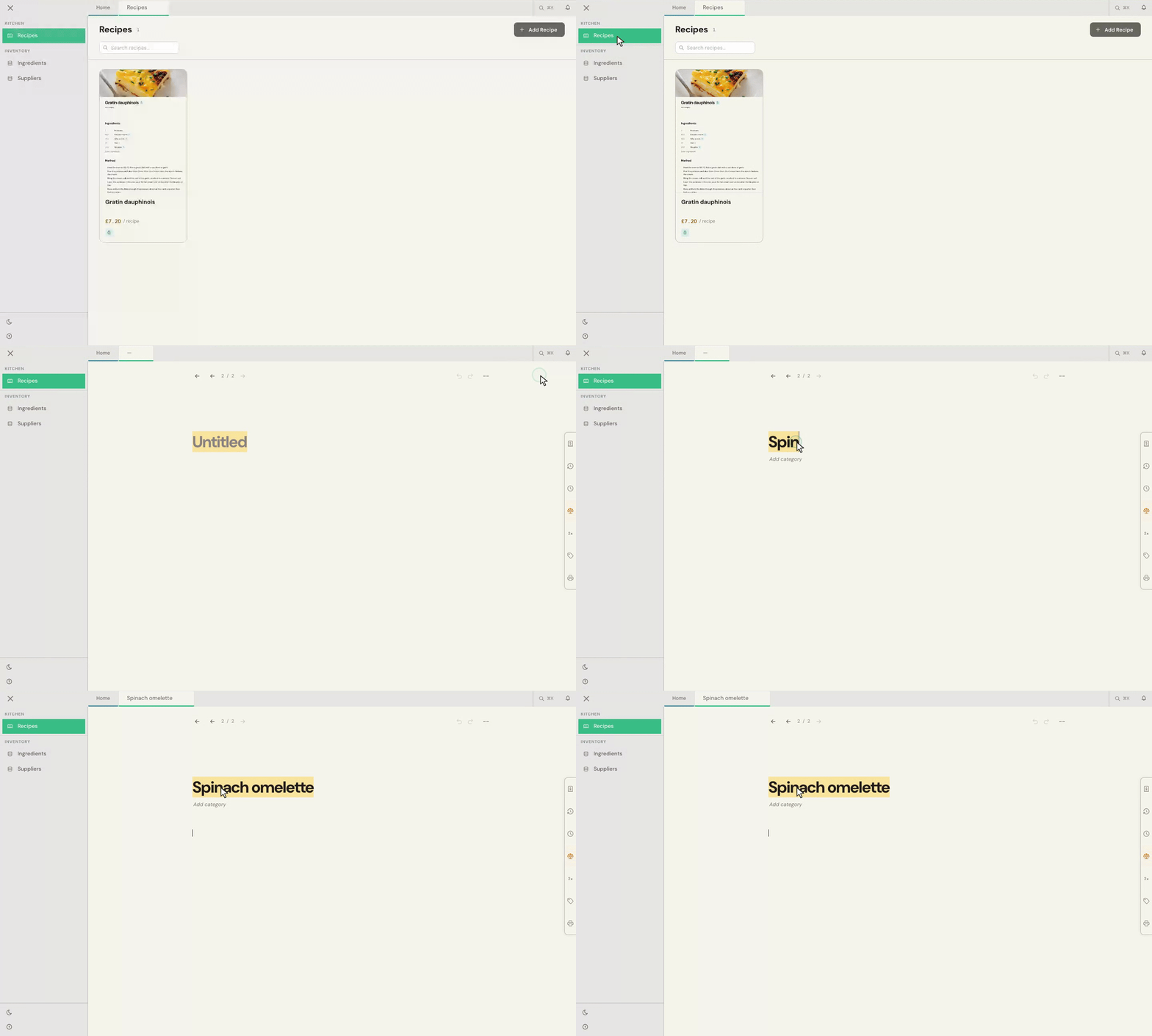
- Open Recipes in the sidebar and choose Add Recipe.
- Select Untitled, type the recipe name and press Enter.
2. Choose or create a category
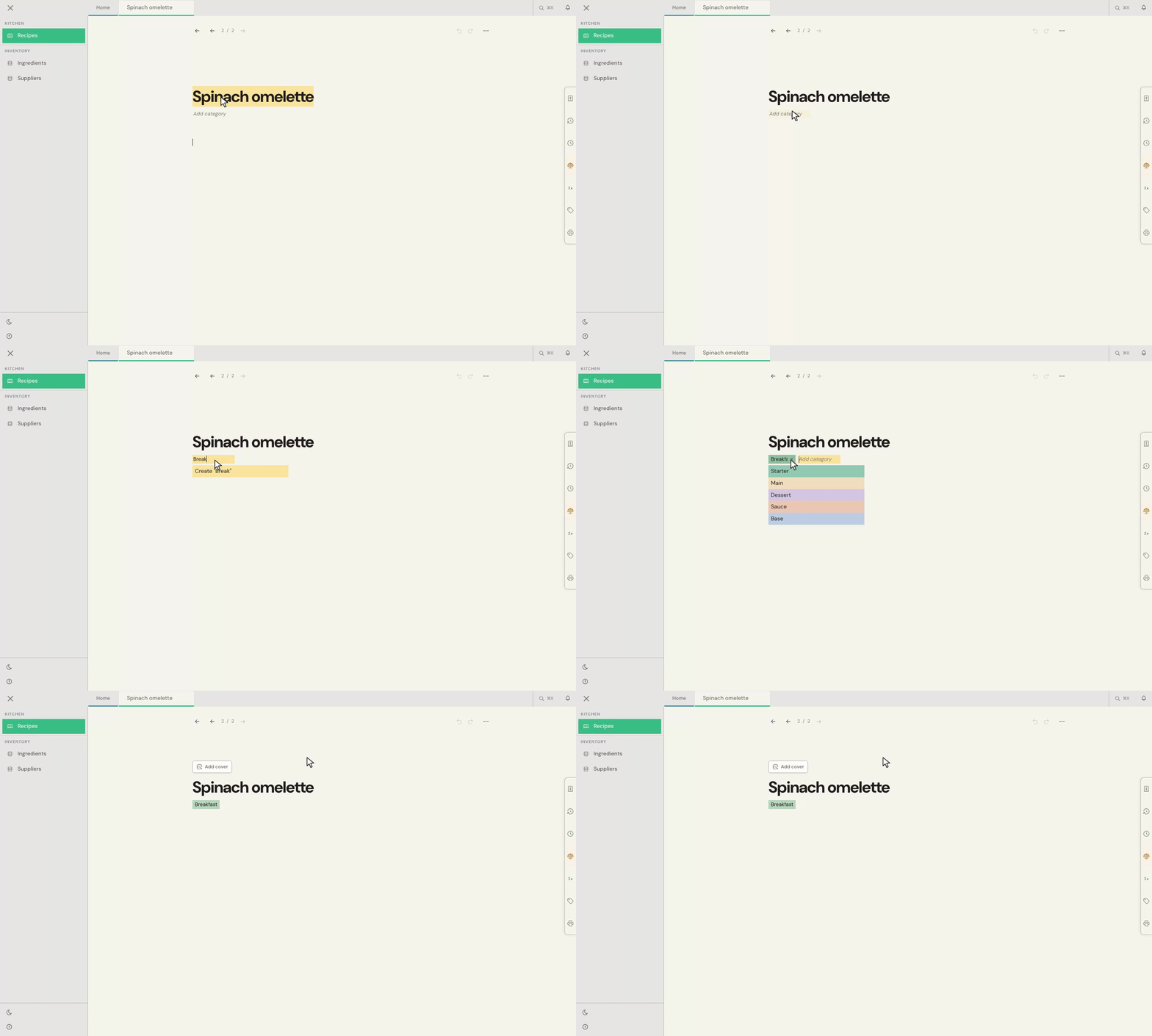
Categories help you organise your recipes. Below the title, click Add category and choose one from the list. To make a new one, type its name, then choose Create with that name or press Enter when it is highlighted. Here we create Breakfast.
The new category is added to the recipe and is available to use on other recipes too.
3. Add a cover image (optional)
You don't need a cover image to write or cost a recipe. If you'd like one:
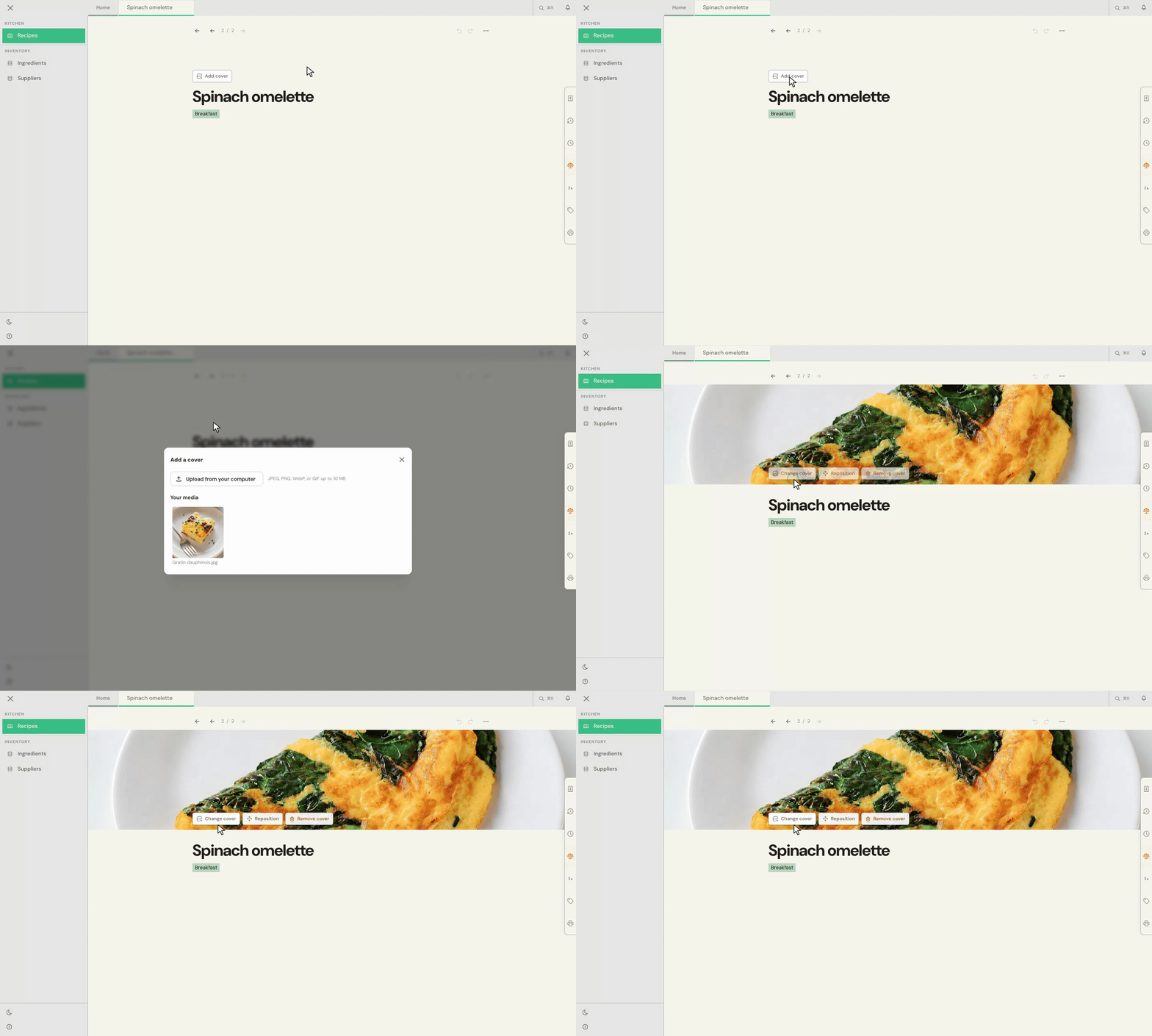
- Move your pointer over the space above the title and choose Add cover.
- Choose an image from Your media, or choose Upload from your computer and select a file.
The image appears above the recipe. Hover over it to Change cover, Reposition or Remove cover later.
4. Add an Ingredients block
A slash command opens a menu of things you can insert into the recipe. As you type after the slash, Cuisson filters the choices; you don't have to type a whole command.
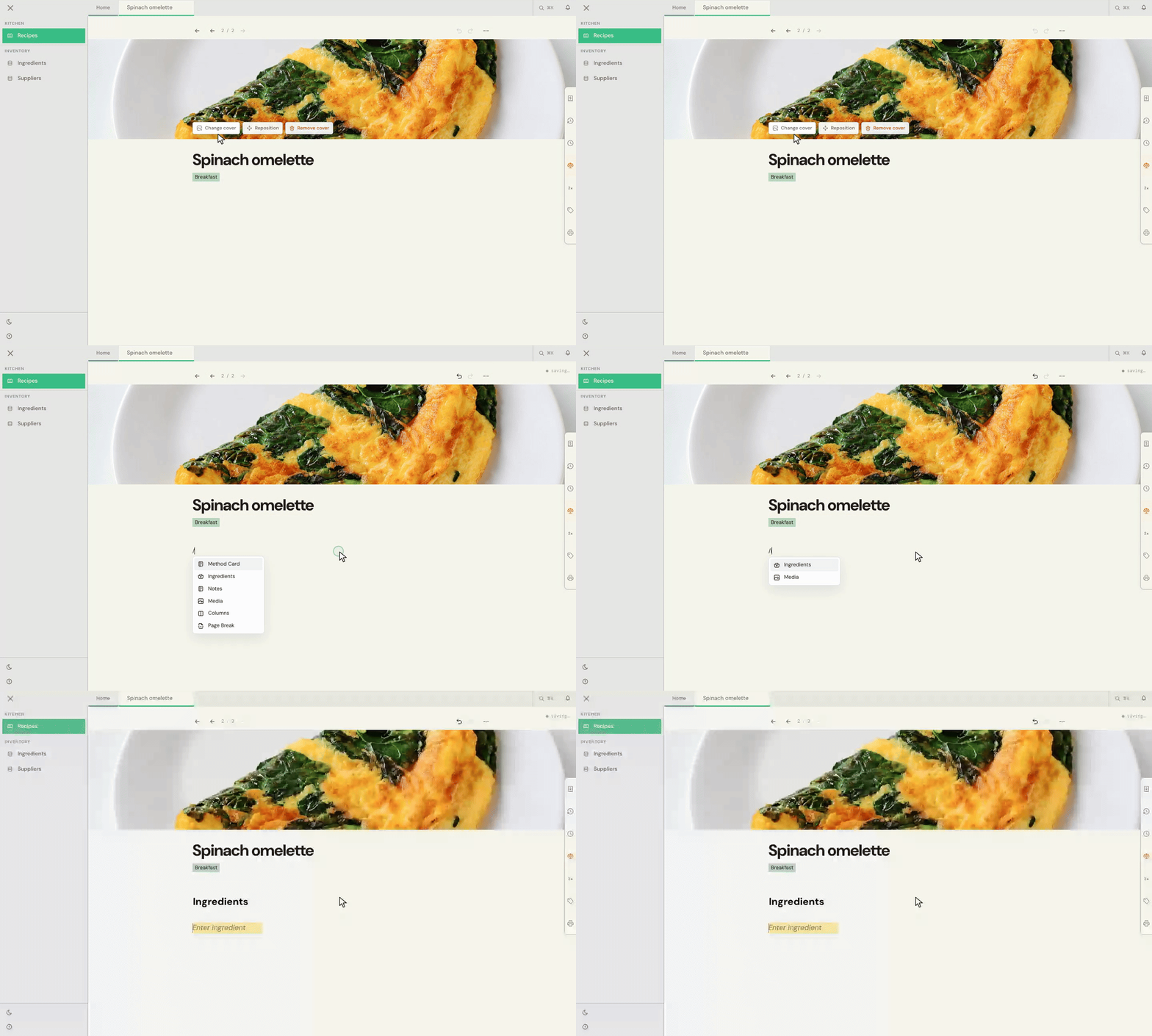
- Click an empty line in the recipe and type / to open the menu.
- Start typing the name of the block. For example, /i offers Ingredients among the matching choices.
- Choose Ingredients from the menu, or use the arrow keys to highlight it and press Enter.
Cuisson replaces the slash and the letters you typed with an Ingredients block. This is where you add the quantities used for costing.
5. Add the ingredients
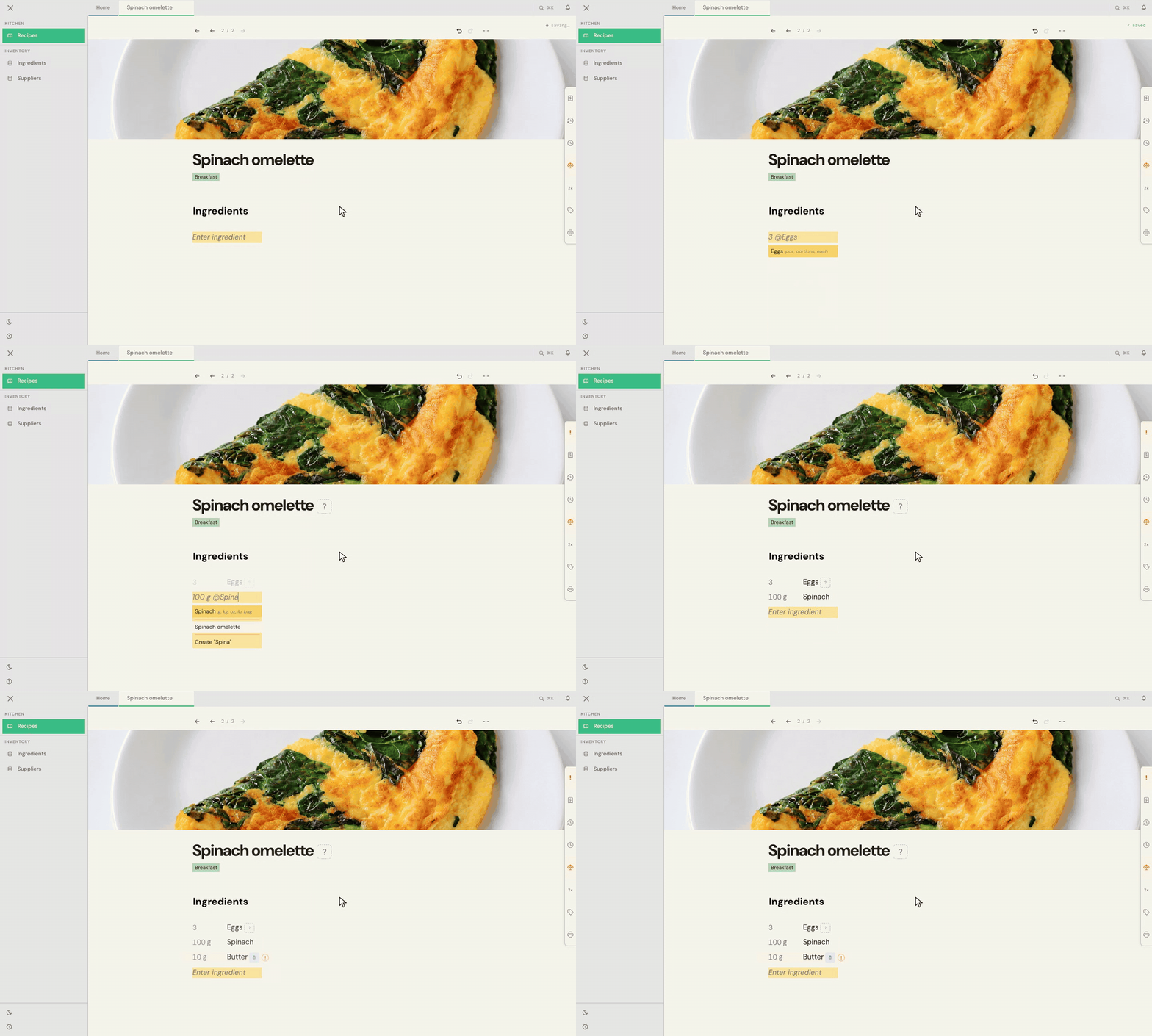
- Click Enter ingredient and type a quantity followed by @ and the ingredient name. For example, type 3 @Eggs.
- Choose the ingredient from the picker or press Enter when it is highlighted.
- Add a prep note if you need one, or press Enter again to choose No prep note.
- Repeat for 100 g @Spinach and 10 g @Butter.
The ingredients appear in the block with their quantities. Cuisson uses the selected ingredient's price to cost each line.
Need an ingredient that isn't in your list yet? See Add ingredients and prices while writing a recipe.
6. Price an ingredient if needed
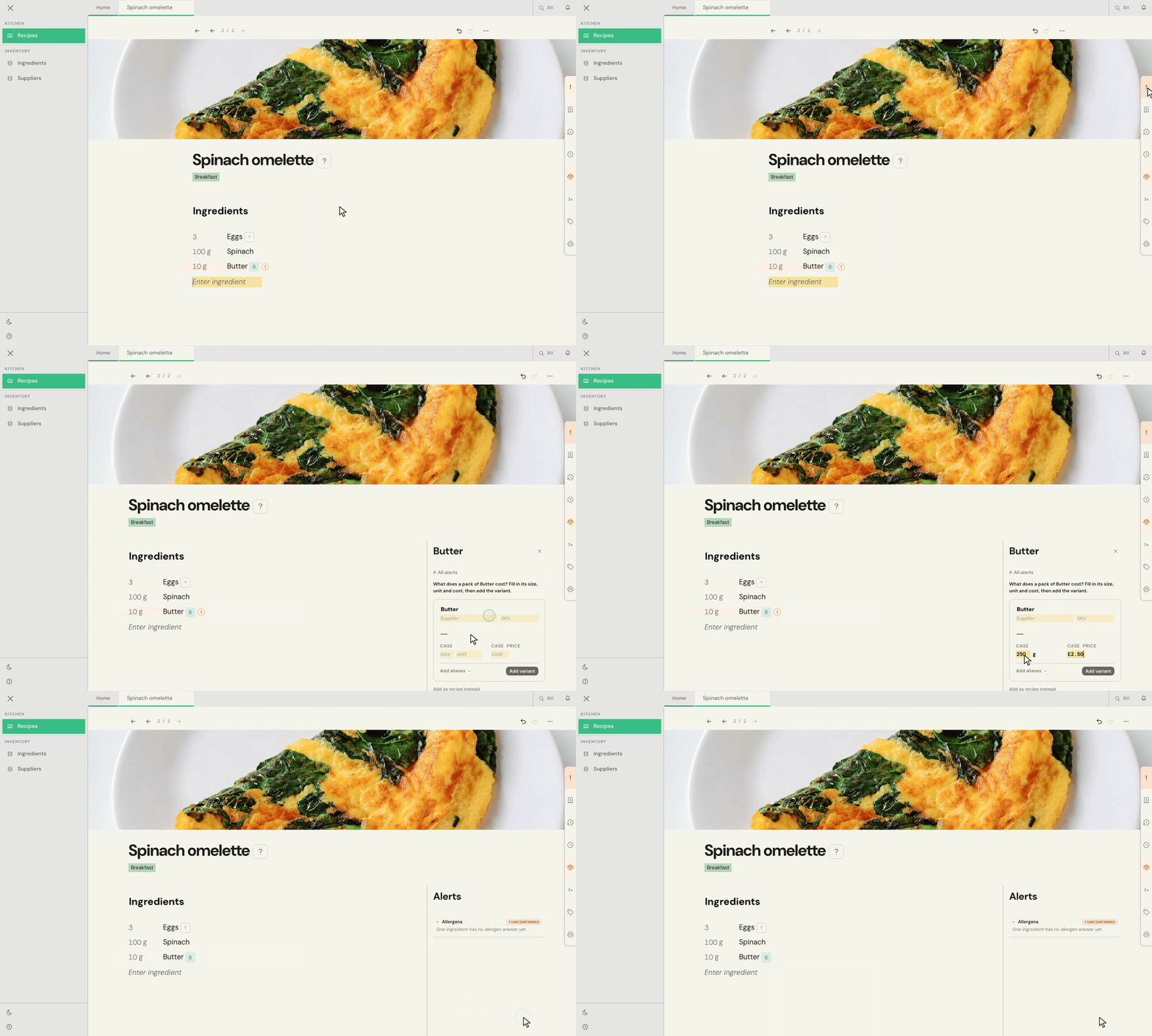
In this example, butter has an orange ! because it doesn't have a price yet. You can add one without leaving the recipe.
- Open Alerts, the ! in the panel tabs on the right.
- Choose Add a price beside the butter alert.
- Enter the supplier's pack size, unit and pack cost, then choose Add variant. Here we use a 250 g pack costing £2.50.
The price alert clears and Cuisson can cost the butter line. For more detail, see Add ingredients and prices while writing a recipe.
7. Write the method
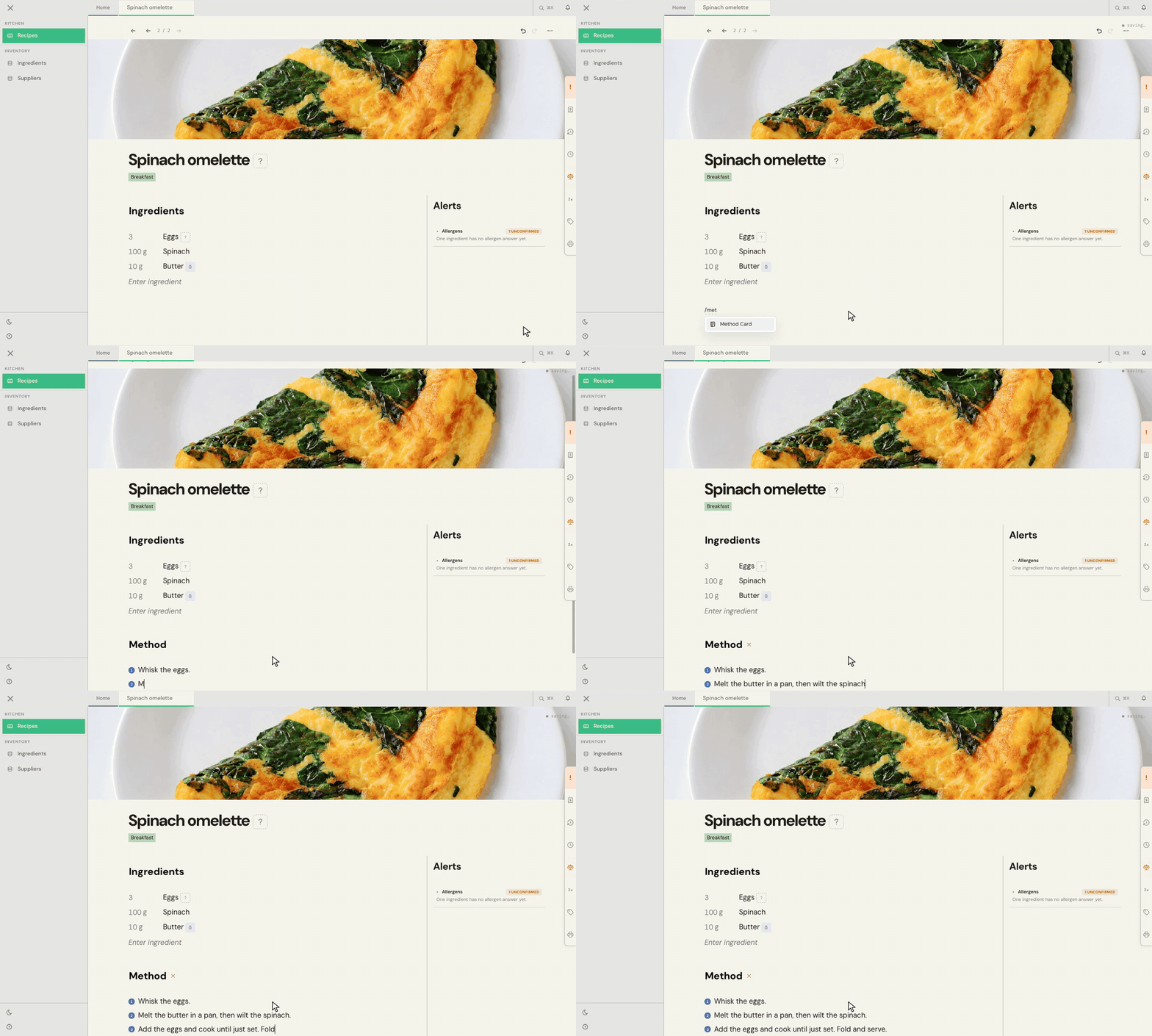
- Click an empty line below the Ingredients block and type / to open the insert menu.
- Start typing method, then choose Method Card from the matching options or press Enter when it is highlighted.
- Write the first instruction in the step. Press Enter to add the next numbered step, and repeat for the rest of the method.
Cuisson puts the instructions inside the Method block and numbers the steps for you.
8. Set the yield and check the cost
The yield is how much the finished recipe makes. Enter it after cooking or measuring the batch so the per-unit cost reflects what you actually made.
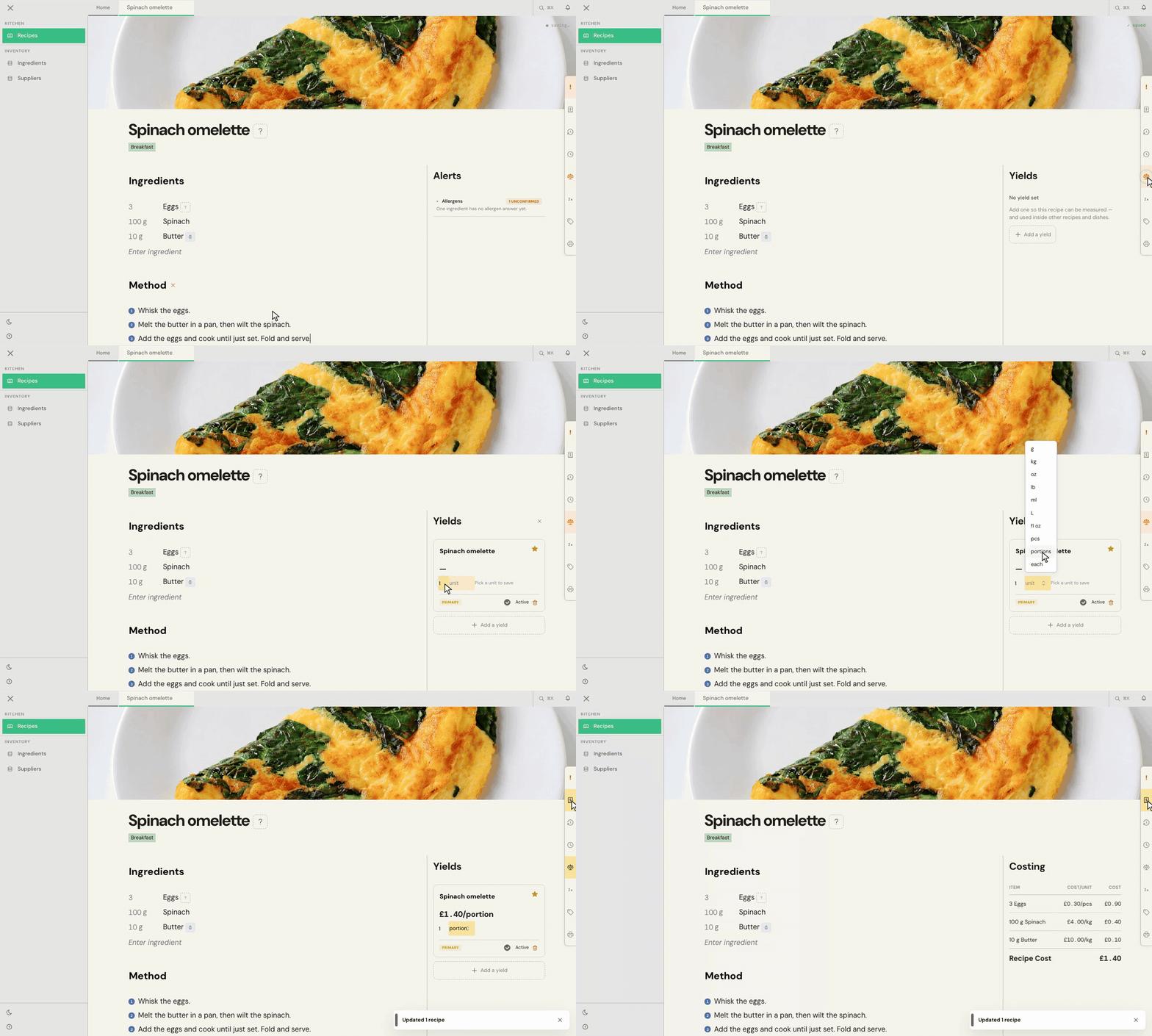
- Open Yields using the scales icon in the panel tabs on the right.
- Choose Add a yield, enter the finished quantity, then choose its unit. For this example, we enter 1 and choose portions.
- Open Costing using the cost icon in the panel tabs. You'll see each ingredient's unit cost and line cost, followed by Recipe Cost.
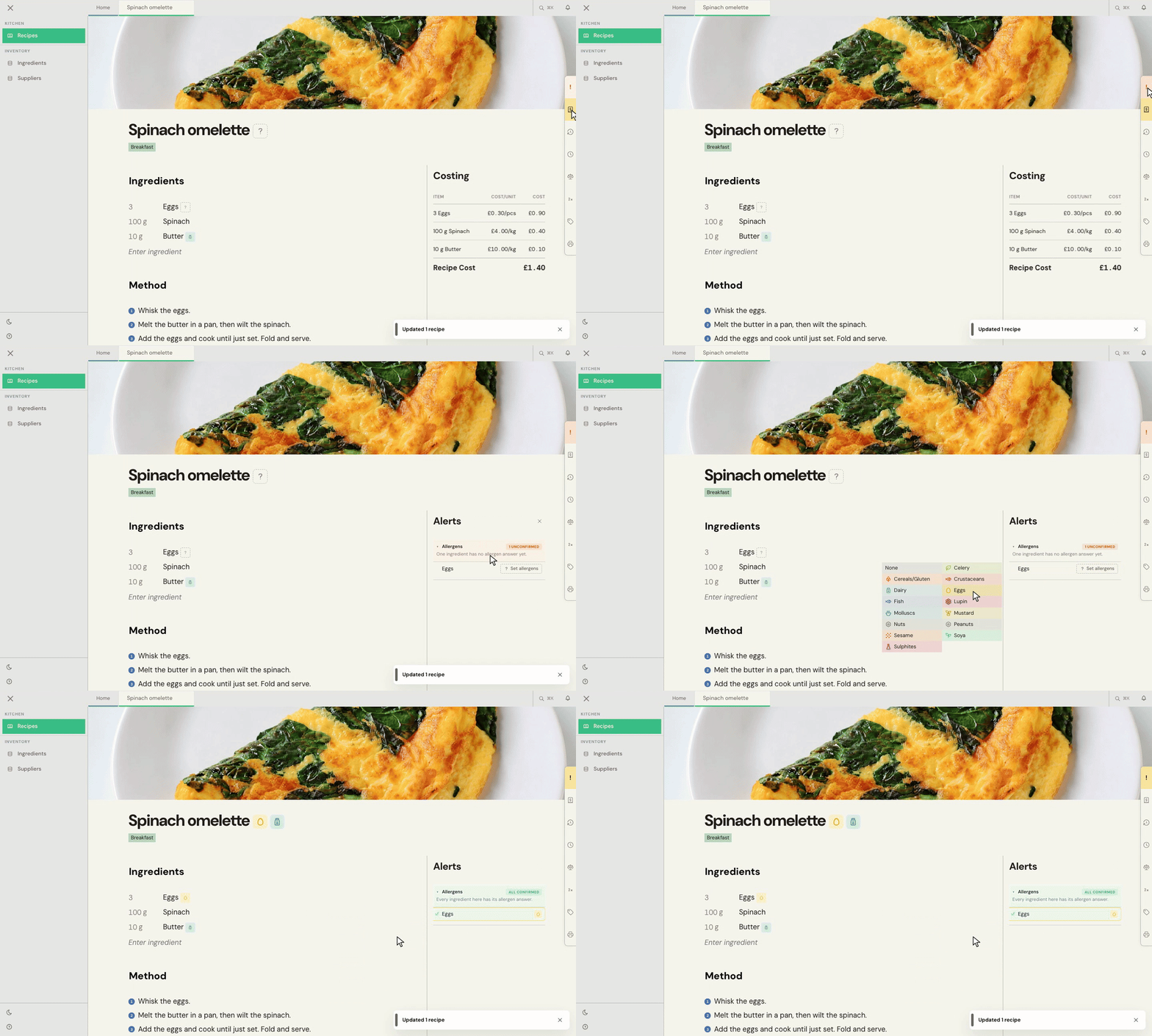
The Yields card shows the cost per unit of yield. In this example, eggs cost £0.90, spinach £0.40 and butter £0.10. The recipe costs £1.40 in total and makes one portion, so the card shows £1.40 per portion. Your prices and yield will give you different figures.
9. Check the alerts
Alerts shows things that need your attention, such as an ingredient with no price or unconfirmed allergens. Check what each alert says and use the action beside it to supply the missing information.
In our example, Eggs has a question mark because its allergens haven't been confirmed:
- Open Alerts, then expand Allergens.
- Choose Set allergens beside Eggs.
- Select Eggs in the picker and press Enter to save.
The allergen section changes to All confirmed, and the egg allergen appears beside the ingredient and recipe title. Confirm the allergens that apply to your own ingredients; choose None only when you've checked that none apply.
Your recipe is now ready to return to from Recipes. You can edit the text or quantities as the recipe changes.
Common problems
I can't find an ingredient in the picker
Check the spelling and look through the results. If it isn't there, you can add it from the recipe: see Add ingredients and prices while writing a recipe.
My recipe cost is missing or incomplete
Check that each ingredient has a quantity and a priced variant. Open Alerts, the ! in the panel tabs, to see what needs attention. See Add ingredients and supplier prices for help adding a price.
The cost per portion isn't what I expected
Check the quantity and unit in Yields against the finished batch. The recipe cost is for the ingredients in the whole recipe; the yield card shows a cost per unit of that yield.
There's a question mark beside an ingredient
Its allergens haven't been confirmed. Open Alerts and set the allergens for that ingredient. Don't treat the question mark as confirmation that it has none.
I need more help
Use Send feedback in the app, or email beta@kitchendocs.co.uk with what you were trying to do.